Google Takeout gives you all your Gmail as one big MBOX file. That's handy as a backup, but Outlook can't open MBOX, so the file sits there unread until you convert it.
This guide walks through the Takeout export, a free IMAP route for accounts that are still active, and the MBOX to PST conversion for archives where the account is gone.
01
Step 1: Export your Gmail with Google Takeout
- Go to takeout.google.com and sign in to the Gmail account.
- Click Deselect all, then scroll down and tick only Mail.
- Click All Mail data included if you want only certain labels.
- Click Next step, choose Export once, file type .zip, and a file size. Choose the largest size so the mail isn't split across archives.
- Click Create export. Google emails a download link when it's ready, which can take hours or a couple of days for big mailboxes.
Extract the ZIP. The mail is in Takeout\Mail\, in a file called something like All mail Including Spam and Trash.mbox.
02
Free option: skip Takeout and sync with IMAP
If the Gmail account still works, you don't need the MBOX at all. Add the account to classic Outlook (File > Add Account) and let it sync. Then export to PST with File > Open & Export > Import/Export > Export to a file > Outlook Data File (.pst).
This is slow for large mailboxes, and Gmail's labels arrive as folders, so an email with three labels can show up three times. It also does nothing for you once the account has been closed, which is when the Takeout file becomes your only copy.
03
Step 2: Convert the Takeout MBOX to PST
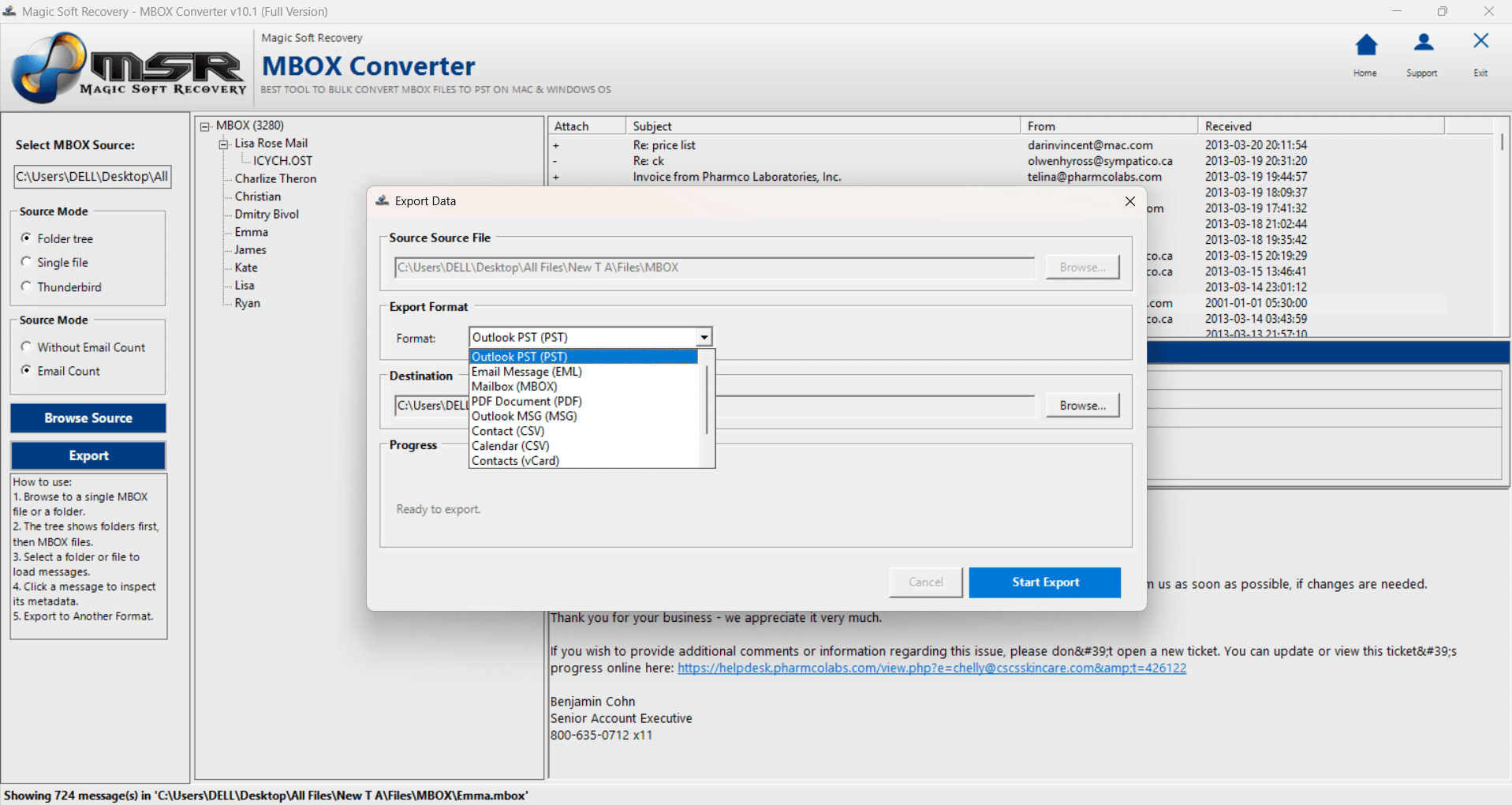
Magic Soft MBOX Converter supports Takeout MBOX files of any size and writes a PST that Outlook opens directly. It runs on your PC, so the mail isn't uploaded anywhere.
01Load the file
Choose Single file under Source Mode, click Browse Source and pick the .mbox file from the Takeout folder.
02Preview
Let the file load, then browse and search the emails to make sure it's the right archive.
03Choose Outlook PST
Click Export and pick Outlook PST (PST). Turn on Remove Duplicates if you merged several exports, and set a date range to leave out years you don't need.
04Export
Choose a destination folder and click Start Export.
SPAM AND TRASH - The Takeout file includes your Spam and Trash folders. Preview first and leave those emails out so they don't land in Outlook.
04
Step 3: Open the PST in Outlook
- Browse it as a separate mailbox: File > Open & Export > Open Outlook Data File.
- Merge it into your current mailbox: File > Open & Export > Import/Export > Import from another program or file > Outlook Data File (.pst).
A Unicode PST holds 50 GB by default in Outlook 2010 and later. If your Takeout file is bigger, use the converter's split option to create several smaller PSTs.
Summary
If the Gmail account is still live, syncing over IMAP is free. If you only have the Takeout file, convert the MBOX to PST and open it in Outlook. For other MBOX sources, see converting MBOX to PST and moving Apple Mail to Outlook.