Switching from Thunderbird, Apple Mail or Gmail to Microsoft Outlook usually hits the same wall: your old mail is in MBOX format, and Outlook only works with PST. There's no "Import MBOX" button in Outlook, so the mail has to be converted first.
Below are three ways to get it done. Two are free but manual and slow. The third uses a converter and handles whole mailboxes in one go. We'll also show you how to open the finished PST in Outlook.
Free: Thunderbird exports EML files, which you drag into Outlook
Free: an IMAP email account carries the mail from Thunderbird to Outlook
Fastest: an MBOX to PST converter writes the PST file directly
01
MBOX vs PST: Why Outlook Needs a Conversion
Both formats hold email, but they're built very differently. MBOX keeps one mailbox folder in one plain text file. PST is Outlook's own database file and can hold a whole mailbox, including folders, contacts and calendar items, in a single file.
MBOX
PST
Structure
One text file per mailbox folder
One database file for the whole mailbox
Used by
Thunderbird, Apple Mail, Google Takeout, SeaMonkey, Eudora
Microsoft Outlook for Windows
Opens in Outlook
No
Yes
Size limit
Depends on the client
50 GB by default for Unicode PST files (Outlook 2010 and later)
02
Before You Start
Find your MBOX files. Thunderbird keeps them in %APPDATA%\Thunderbird\Profiles\ under your profile's Mail or ImapMail folder. Apple Mail creates them with Mailbox > Export Mailbox, and Gmail with Google Takeout.
Compact Thunderbird folders first. Deleted emails stay inside an MBOX file until the folder is compacted. Compacting stops them from turning up in Outlook.
Work on a copy. Copy the MBOX files to another folder and convert the copies, so the originals stay untouched.
Check your Outlook version. The Outlook steps below are for classic Outlook for Windows. If you use the new Outlook for Windows, check Microsoft's current PST support before you begin.
03
Method 1: Thunderbird to EML, Then Drag Into Outlook (Free)
This method uses Thunderbird with the free ImportExportTools NG add-on to turn the MBOX file into individual EML files, which Outlook can accept.
Install Thunderbird and the ImportExportTools NG add-on (menu > Add-ons and Themes).
Create a new folder under Local Folders, right-click it, choose ImportExportTools NG > Import mbox file and select your MBOX file.
Right-click the imported folder and choose ImportExportTools NG > Export all messages in the folder > EML format. Pick an empty folder on your PC.
In classic Outlook, create a folder for the old mail. Open the EML folder in File Explorer, select the files and drag them onto the Outlook folder.
Repeat for each mailbox folder you want to move.
TEST WITH A FEW FILES FIRST - Depending on your Outlook version and settings, dragged EML files can sometimes land as attachments rather than as normal emails. Try five or ten files before you move thousands.
Downsides: one folder at a time, you rebuild the folder structure by hand, and big mailboxes take a long time.
04
Method 2: Move Mail Through an IMAP Account (Free)
If you have an IMAP email account, such as Gmail or Outlook.com, you can use it as a bridge between the two programs.
Import the MBOX file into Thunderbird with ImportExportTools NG, as in Method 1.
Add the same IMAP account to both Thunderbird and Outlook.
In Thunderbird, copy the imported folder into the IMAP account and wait for it to finish uploading.
In Outlook, let the account sync until the folder and its emails appear.
To save a PST file, go to File > Open & Export > Import/Export > Export to a file > Outlook Data File (.pst) and select the folder.
Downsides: your old mail passes through an online mailbox, uploads are slow, and large archives can run into the account's storage limit.
05
Method 3: Use an MBOX to PST Converter (Fastest)
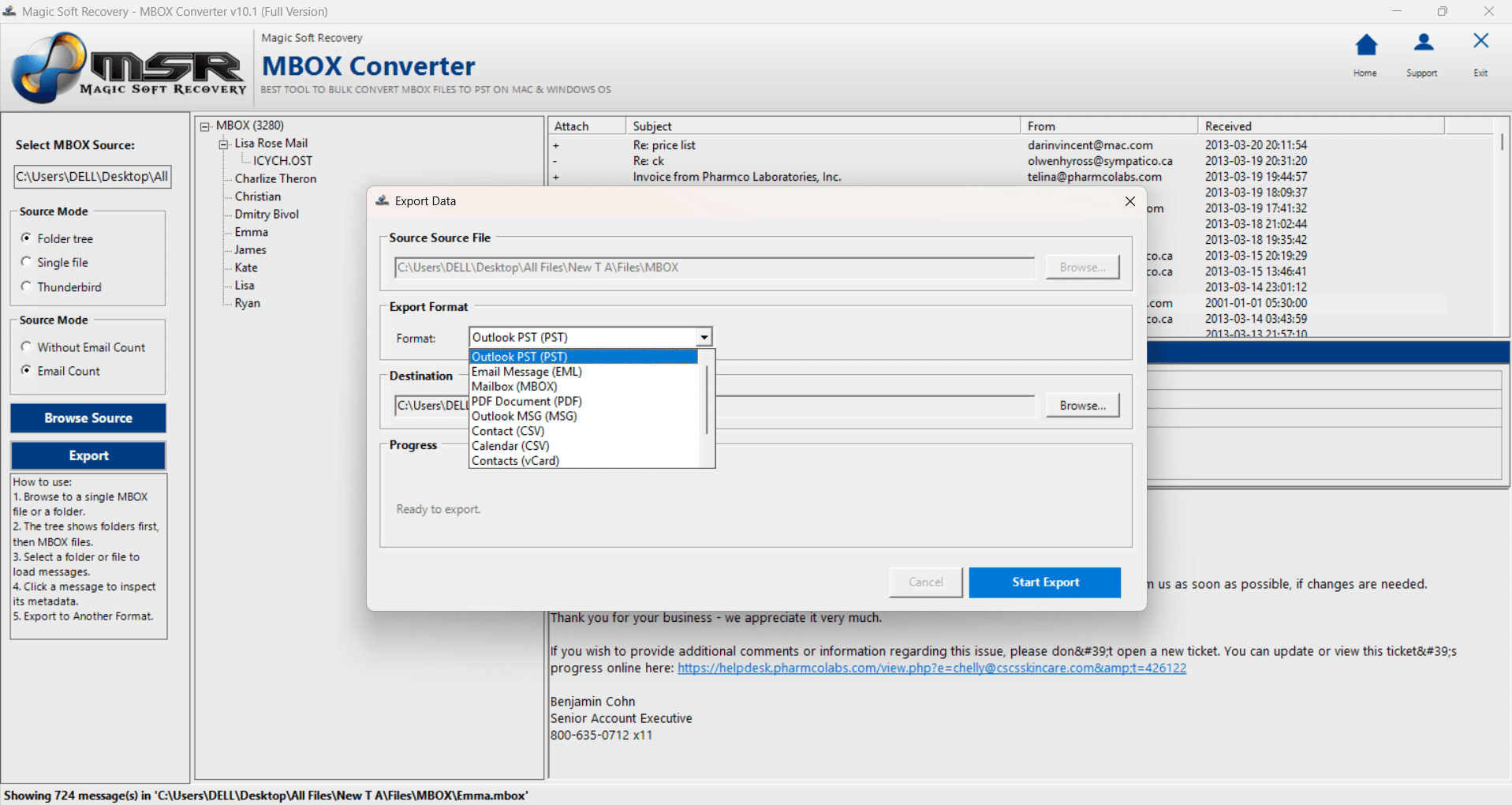
A converter skips the email client entirely and writes the PST file for you. With Magic Soft MBOX Converter, the whole process looks like this:
01
Add your MBOX files
Under Source Mode, choose Single file, Folder tree or Thunderbird, then click Browse Source. You can load one file or a whole folder of MBOX files.
02
Preview the mail
Check folders and messages in the preview pane and select what you want to convert.
03
Choose Outlook PST
Click Export. In the Export Data window, open the Format list, choose Outlook PST (PST) and set a destination folder.
04
Start the export
Click Start Export. The progress bar counts messages as they're written, and a message confirms when the export is complete.
No Thunderbird or Outlook is needed on the computer doing the conversion, and everything runs on your own PC. The free trial converts the first 10 emails of each MBOX file, so you can check the result in Outlook before buying a license.
06
How to Open the PST File in Outlook
Once you have a PST file, there are two ways to bring it into classic Outlook for Windows:
Open it as a separate folder: File > Open & Export > Open Outlook Data File, then select the PST. It appears in the folder pane next to your mailbox.
Merge it into your mailbox: File > Open & Export > Import/Export > Import from another program or file > Outlook Data File (.pst).
07
Which Method Should You Choose?
Method
Cost
Keeps folder structure
Batch
Best for
Thunderbird + EML drag
Free
No, rebuilt by hand
No
A few small folders
IMAP account bridge
Free
Partly
Slow
Moderate mail volume, no privacy concerns
Magic Soft MBOX Converter
From $39
Yes
Yes
Large archives, many MBOX files, IT migrations
Summary
Outlook can't read MBOX files, so you need to convert them to PST. For a handful of emails, the free Thunderbird and EML route is fine. For anything bigger, such as years of Thunderbird mail or a full Google Takeout export, a converter saves hours and keeps your folders intact.
No. Outlook for Windows imports PST files, not MBOX. You need to convert the MBOX file to PST, or move the emails through EML files or an IMAP account, as described above.
Yes. Methods 1 and 2 are free but manual. The Magic Soft MBOX Converter trial is also free and converts the first 10 emails from each MBOX file, which is enough to test the result.
Yes. Extract the Takeout archive, find the .mbox file in the Mail folder and load it with Single file mode in the converter.
With the converter, yes: load the folder with Folder tree or Thunderbird mode and the PST keeps the same folders. With the EML method you rebuild the folders by hand.
The current version runs on Windows 11, 10, 8.1, 8 and 7. A Mac version is coming soon.
About The Author
Magic Soft
Magic Soft provides software solutions for email recovery, data migration, file conversion, and digital data management.