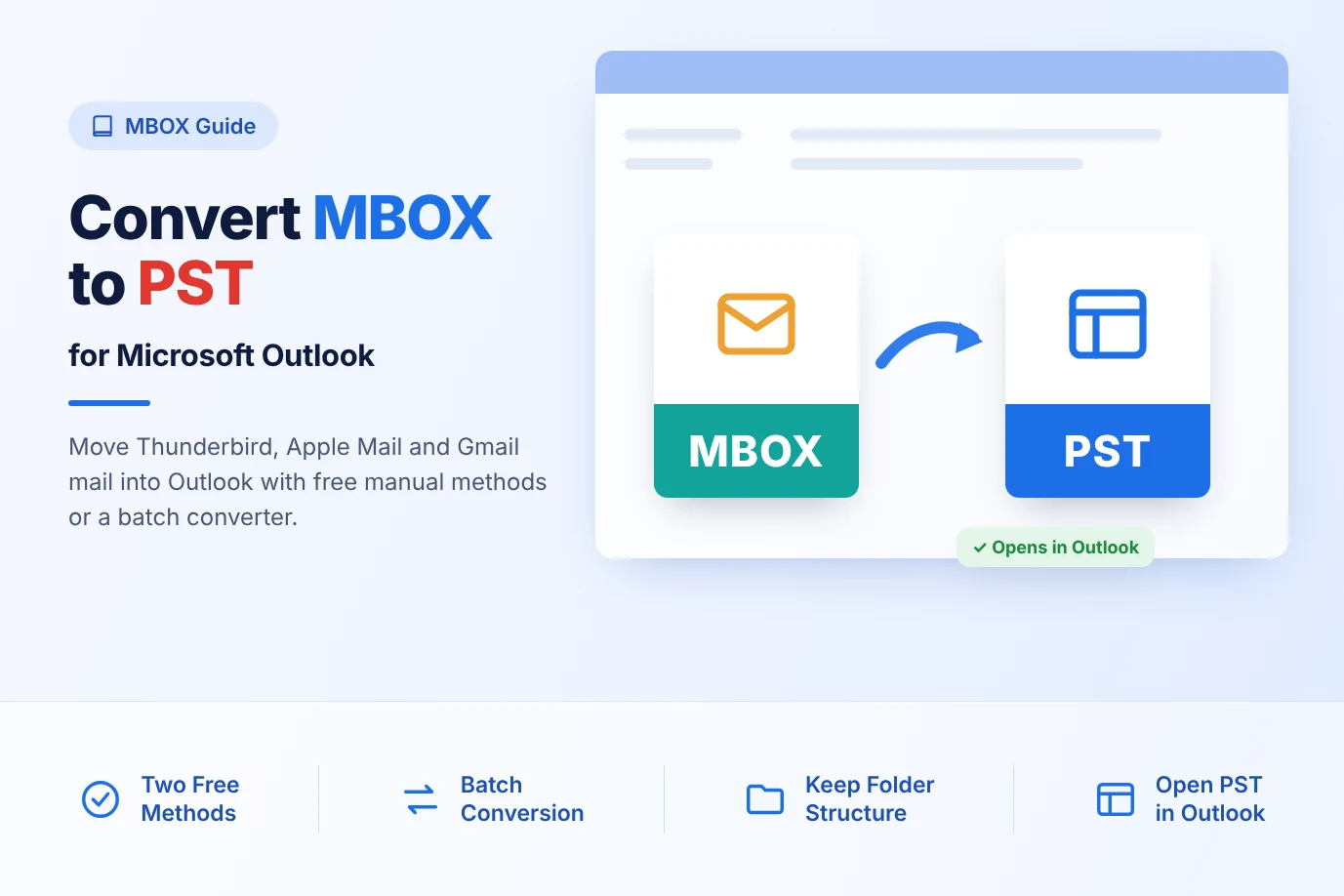
Outlook's Import/Export wizard handles PST, CSV and a few others, but there's no EML option. If you have saved emails from Thunderbird, Windows Live Mail, a backup tool or a mail server export, you need another way in.
For a few files, drag and drop works. For thousands spread across folders, converting them to a PST is faster and keeps the structure.
01
Method 1: Drag EML files into Outlook (free)
- In classic Outlook, create a folder for the imported mail.
- In File Explorer, open the folder with the EML files and select them (Ctrl+A for all).
- Drag them onto the Outlook folder in the folder pane.
TEST FIRST - Depending on your Outlook version and settings, dropped EML files can arrive as attachments inside new messages instead of as normal emails. Try five files before you drag five thousand.
Limits: subfolders aren't recreated, so you repeat this for every folder. Outlook can freeze on very large drops; batches of a few hundred are safer.
02
Method 2: Open and move, for a handful
Double-click an EML so it opens in Outlook, then use File > Move to Folder (or Ctrl+Shift+V) to file it. Slow, but reliable for two or three important messages.
03
Method 3: Convert EML to PST (thousands of files)
Magic Soft EML Converter reads a whole tree of EML folders and combines them into one PST, with the folder structure and attachments in place. Outlook doesn't need to be installed for the conversion.
01Add the EML folder
Click Select Folder and choose the top-level folder. Subfolders are picked up too.
02Preview
Check folders and open a few messages to confirm the content.
03Choose PST
Click Export, select PST, and turn on Remove Duplicates if the same mail was saved twice. Use the split option if you expect a very large PST.
04Export and open
Click Start Export, then in Outlook choose File > Open & Export > Open Outlook Data File.
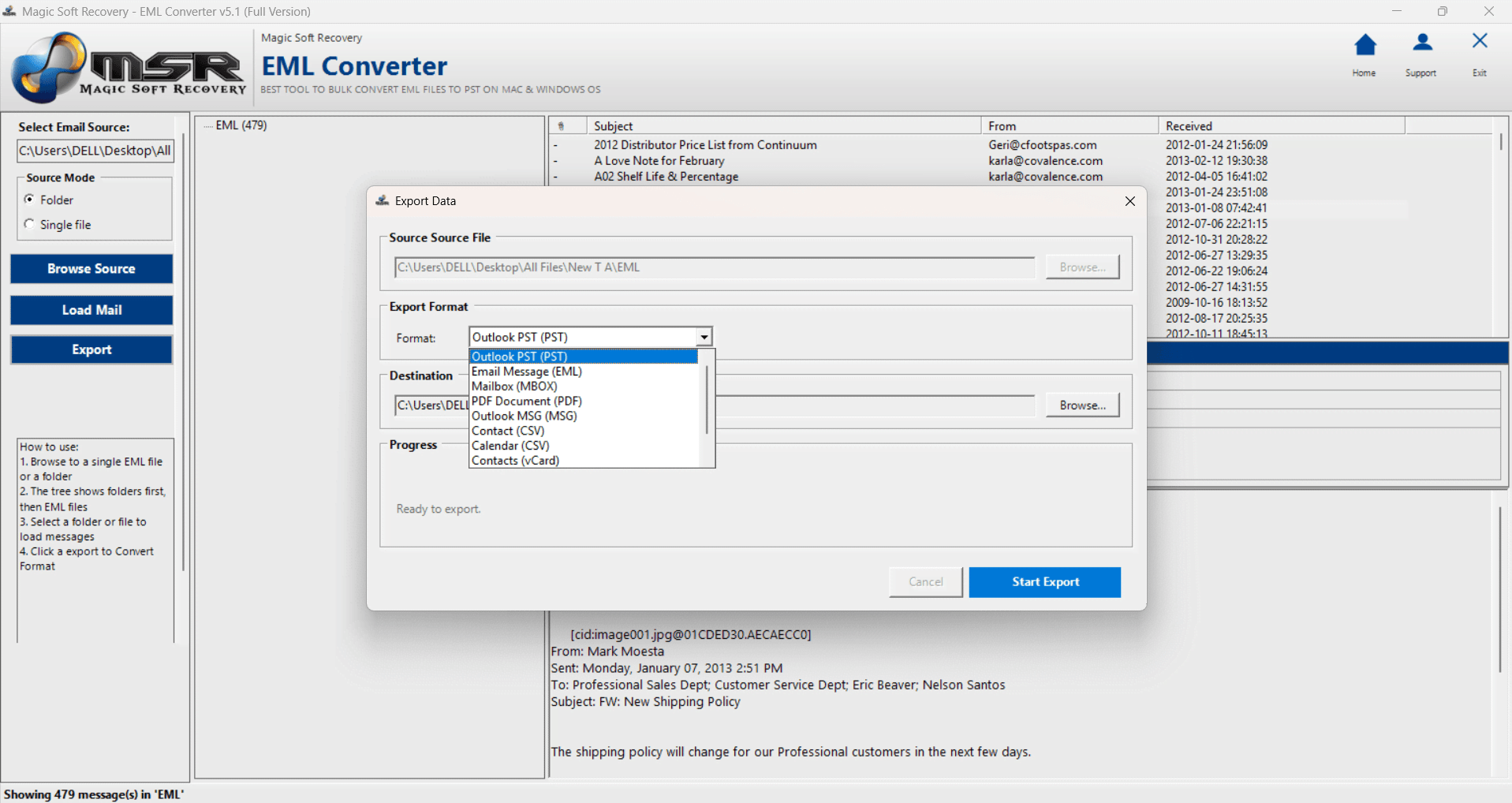
The trial converts 10 emails per folder so you can see how they look in Outlook first.
Summary
Drag and drop is fine for a small batch once you've tested it. For large or nested EML collections, convert to PST and open it in Outlook. Want Outlook's own file format for single emails instead? See EML vs MSG.