Android is easier than iPhone here, because Google Contacts on the web reads CSV files directly. If your phone syncs with a Google account and your CSV is tidy, you may not need a converter at all.
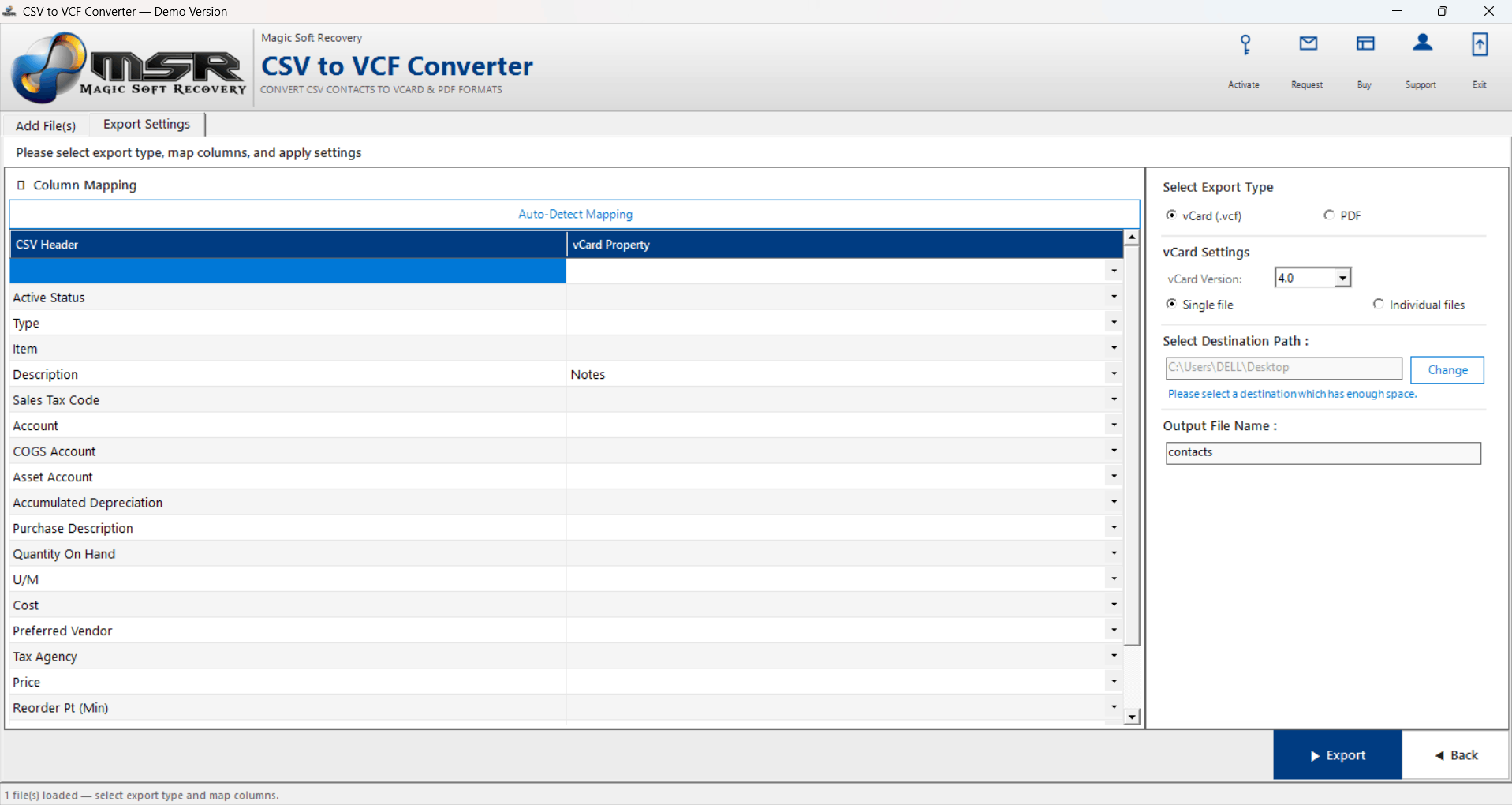
When the phone doesn't use Google, the CSV has odd column names, or you'd rather not upload the list, convert it to VCF and import it from the phone's storage.
01
Method 1: Google Contacts (CSV, no conversion)
- Save the spreadsheet as CSV UTF-8 in Excel.
- On a computer, go to contacts.google.com with the same Google account the phone uses.
- Click Import and choose the CSV.
- On the phone, check that contact sync is on for that account. The contacts appear within minutes.
Google maps standard column names (First Name, Mobile Phone, E-mail Address). Columns it doesn't recognise can end up in notes or be skipped, so check a few contacts afterwards.
02
Method 2: Import a VCF file on the phone
Convert the CSV to VCF first, with Google Contacts' vCard export or Magic Soft CSV to VCF Converter (choose vCard 3.0 or 4.0, single file). Then copy the VCF to the phone by USB, email or cloud storage.
Google Contacts app:
- Open Contacts and tap Fix & manage.
- Tap Import from file.
- Choose the account to save to, then pick the VCF.
Samsung Contacts app:
- Open Contacts, tap the menu and choose Manage contacts.
- Tap Import or export contacts > Import.
- Pick the storage location and the VCF, then choose where to save the contacts.
Menu names vary a little between Android versions and phone makers, but the import option always sits under contact management.
03
Choose the right account to save to
This is the step people regret skipping. Android asks where to save imported contacts:
- Google account: backed up and synced to every device you sign in to. The right choice for most people.
- Phone / Device: stays on that phone only. Lost if the phone is reset or replaced.
- Samsung account: syncs between Samsung devices only.
Summary
With a Google account and a clean CSV, import it at contacts.google.com. Otherwise convert to VCF and use Import from file on the phone, saving to your Google account. Problems with names or numbers? See the fixes guide. Moving to iPhone instead? See CSV contacts to iPhone.