Contact lists usually start life in a spreadsheet: a sales export, a club membership list, a CRM download. Phones and address books don't import spreadsheets, though. They import vCard files (.vcf).
Most failed conversions come from a messy CSV, not the conversion step itself. So this guide starts with getting the file right, then shows two ways to convert it.
01
Step 1: Prepare the CSV
Five minutes here saves an afternoon of fixing contacts on a phone.
- One contact per row, one field per column. Put first and last names in separate columns if you can.
- Clear column headers. Use names like
First Name, Last Name, Mobile Phone, E-mail Address, Company. Standard headers map automatically.
- Phone numbers as text. Excel turns
+447700900123 into 4.477E+11 and drops leading zeros. Format the phone columns as Text before typing or pasting numbers.
- Save as CSV UTF-8. In Excel, choose File > Save As and pick CSV UTF-8 (Comma delimited). Plain CSV can break accented and non-Latin names.
02
Step 2, free option: Google Contacts
If you have a Google account and a straightforward list, Google can do the conversion:
- Go to contacts.google.com and click Import.
- Select your CSV and import it. Google creates a label with the import date.
- Click that label, select all contacts, and click Export.
- Choose vCard (for iOS Contacts) and download the file.
Watch out for: custom column names Google doesn't recognise (they're dropped or dumped into notes), and the contacts being added to your own Google account along the way. Delete the label's contacts afterwards if you didn't want them there.
03
Step 2, offline option: CSV to VCF Converter
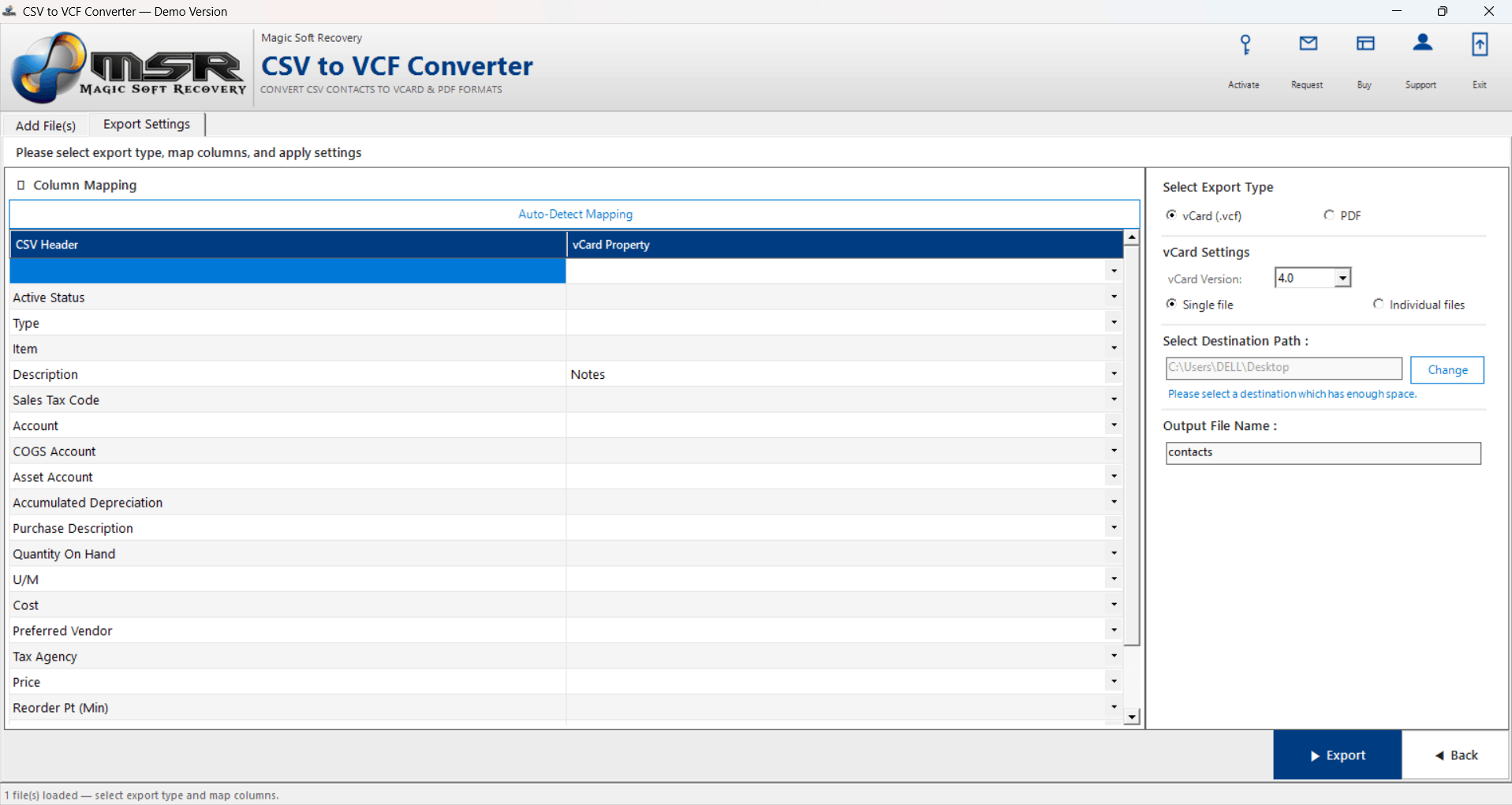
Magic Soft CSV to VCF Converter converts on your PC, with no account, no upload and no Excel needed. It maps CSV columns to vCard fields automatically and lets you map custom columns by hand.
01Add the CSV
Click Add File or Add Folder. Several CSV files can be loaded together.
02Check the mapping
Standard headers from Google, Outlook and Yahoo exports map automatically. Match any custom columns to the right vCard field.
03Pick version and layout
Choose vCard 2.1, 3.0 or 4.0, and one combined VCF or one VCF per contact. PDF is also available for a printable list.
04Export
Choose a destination and click Export.
The trial converts the first 10 contacts, so you can test the file on your phone before buying.
06
Step 4: Import it
Device-specific steps are in our guides for iPhone and Android. If something goes wrong, see fixing CSV to VCF import problems.
Summary
Clean the CSV, save it as CSV UTF-8, then convert it with Google Contacts or an offline converter. vCard 3.0 is the safest choice for phones. If your contacts are in an Outlook PST rather than a spreadsheet, see exporting PST contacts to VCF.