You need part of a PDF: one chapter of a report, the signed pages of a contract, every invoice in a 300-page scan as its own file. Splitting gets you there.
For a quick extraction, your browser can do it for free. For repeat jobs, many files, or splits by size or page groups, a dedicated tool is faster.
01
Free: extract pages with your browser (Windows or Mac)
- Open the PDF in Chrome or Edge.
- Press Ctrl+P (Cmd+P on Mac).
- Set the printer to Save as PDF (or Microsoft Print to PDF).
- Under Pages, choose Custom and type the range, for example
5-12.
- Save.
Repeat for each part you need. Printing can drop links, bookmarks and form fields, and it can't open password-protected files without the password.
On a Mac, you can also open the PDF in Preview, show thumbnails, and drag selected pages to the desktop to create a new PDF.
02
The 8 ways to split, and when to use each
Magic Soft PDF Split & Merge has eight split modes:
| Mode | Example | Use it for |
|---|
| By each page | 100 pages = 100 files | Separating scanned invoices or forms |
| By specific pages | 1,3,5,8 | Pulling out a few pages |
| By page groups | 1 2 3 | 4 5 6 | Fixed-size bundles, such as 3-page forms |
| By ranges | 1-3, 4-6, 7-9 | Chapters or sections |
| By range groups | 1-3 and 7-9 in one file | Combining non-adjacent sections |
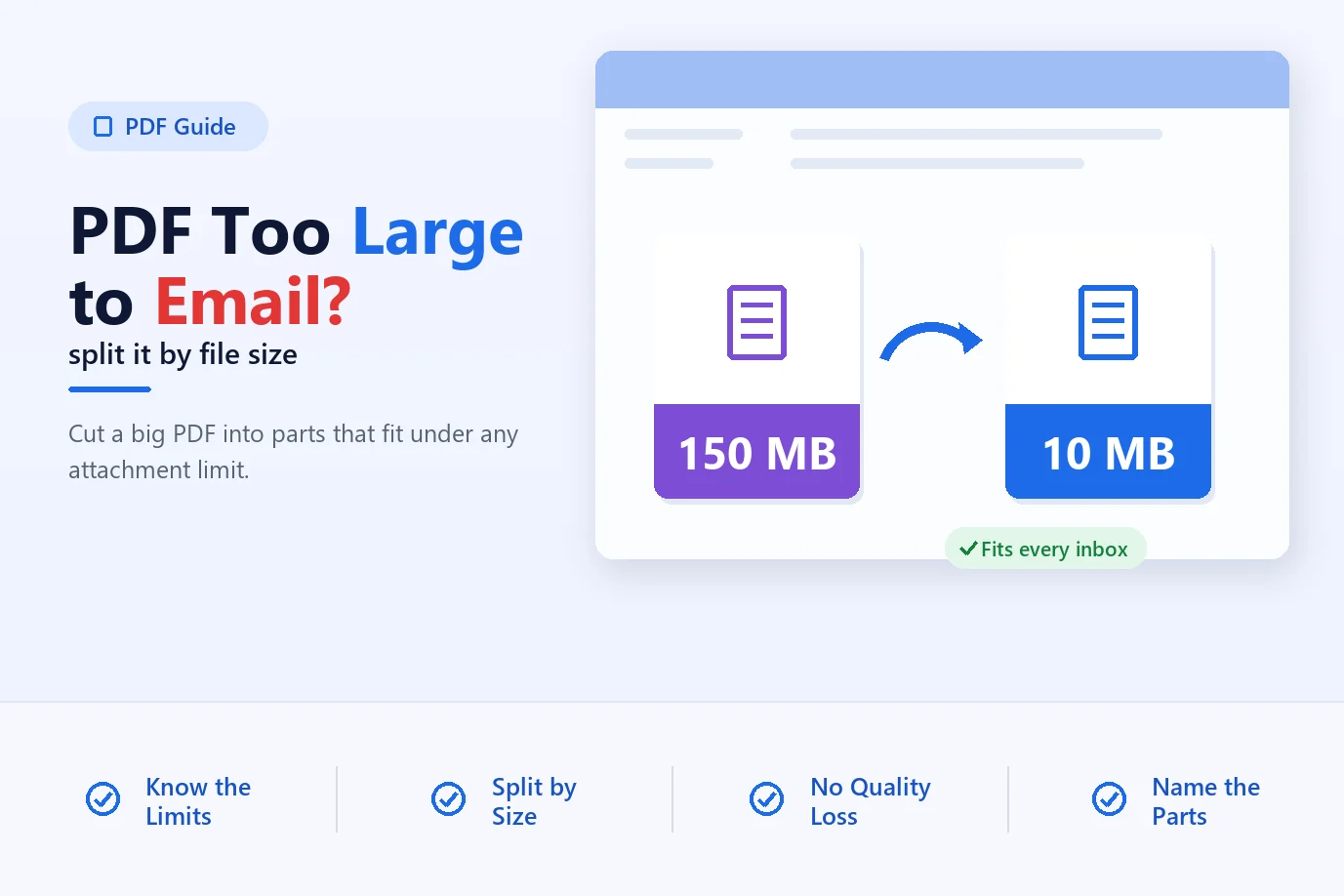
| By file size | Max 10 MB per file | Email attachment limits |
| By odd pages | 1, 3, 5... | Double-sided scanning jobs |
| By even pages | 2, 4, 6... | Double-sided scanning jobs |
03
Split a PDF with PDF Split & Merge
01Load the files
Add PDFs one by one, import a folder (subfolders included) or drag them in from File Explorer.
02Choose Split and a mode
Pick one of the eight modes and enter the pages, ranges or maximum size.
03Handle passwords
Select any protected file and enter its password. Each file can have its own.
04Export
Choose Standard PDF or PDF/A, pick an output folder and click Start.
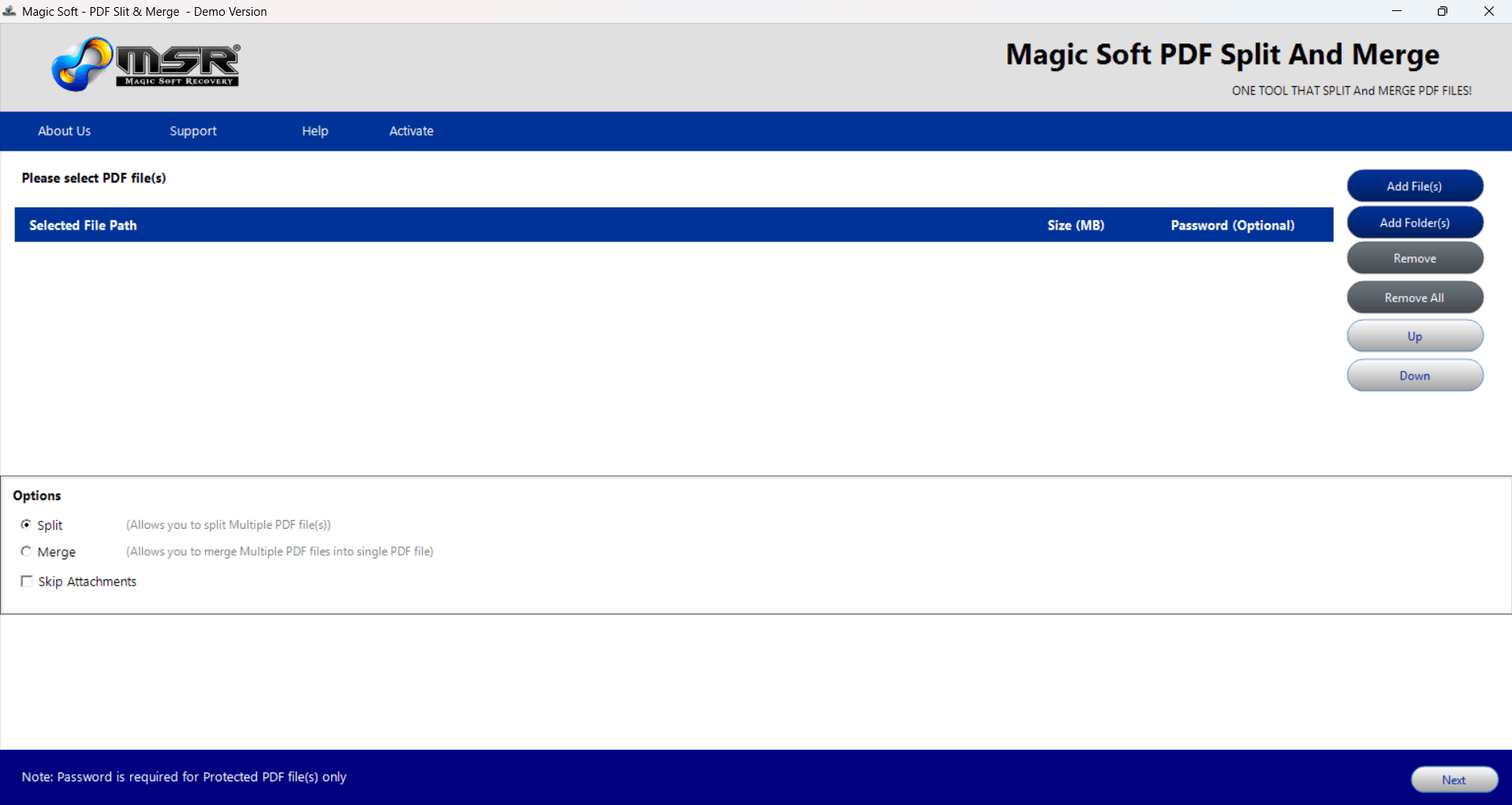
The source PDF is only read, never changed, and output files get unique names so nothing is overwritten. The free demo has every mode; its output carries a light watermark.
Summary
Use the browser's Save as PDF for quick one-off extractions. For splitting by size, groups, odd/even pages or many files at once, use a tool with those modes built in. Need to go the other way? See how to merge PDF files.