01
Why Convert PST Files to PDF?
PST files are tied entirely to the Microsoft Outlook ecosystem. They cannot be opened in a browser, shared as a readable document, or submitted to a court or auditor without specialist software. PDF removes all of that friction.
-
Legal e-discovery and court submissions —Courts and regulatory bodies accept PDF as a standard format for email evidence. Every timestamp and header must be visible and non-editable, which is exactly what a properly converted PDF provides.
-
Compliance archiving under GDPR, HIPAA, and SOX —Long-term email retention policies frequently require records in a stable, non-proprietary format. PDF is the most widely accepted archival format for this purpose.
- Sharing email records without Outlook —A PDF is readable by anyone on any device. A PST file requires Outlook. When you need to share email records with a client, auditor, or colleague who does not use Outlook, PDF is the only practical option.
- Decommissioning Exchange or Outlook environments —When an organization migrates away from Outlook, existing email archives need to be preserved in a format that remains accessible after Outlook is removed.
02
Step-by-Step: How to Convert PST to PDF with Attachments
This process works on any Windows machine. No Microsoft Outlook or Office license required at any stage.
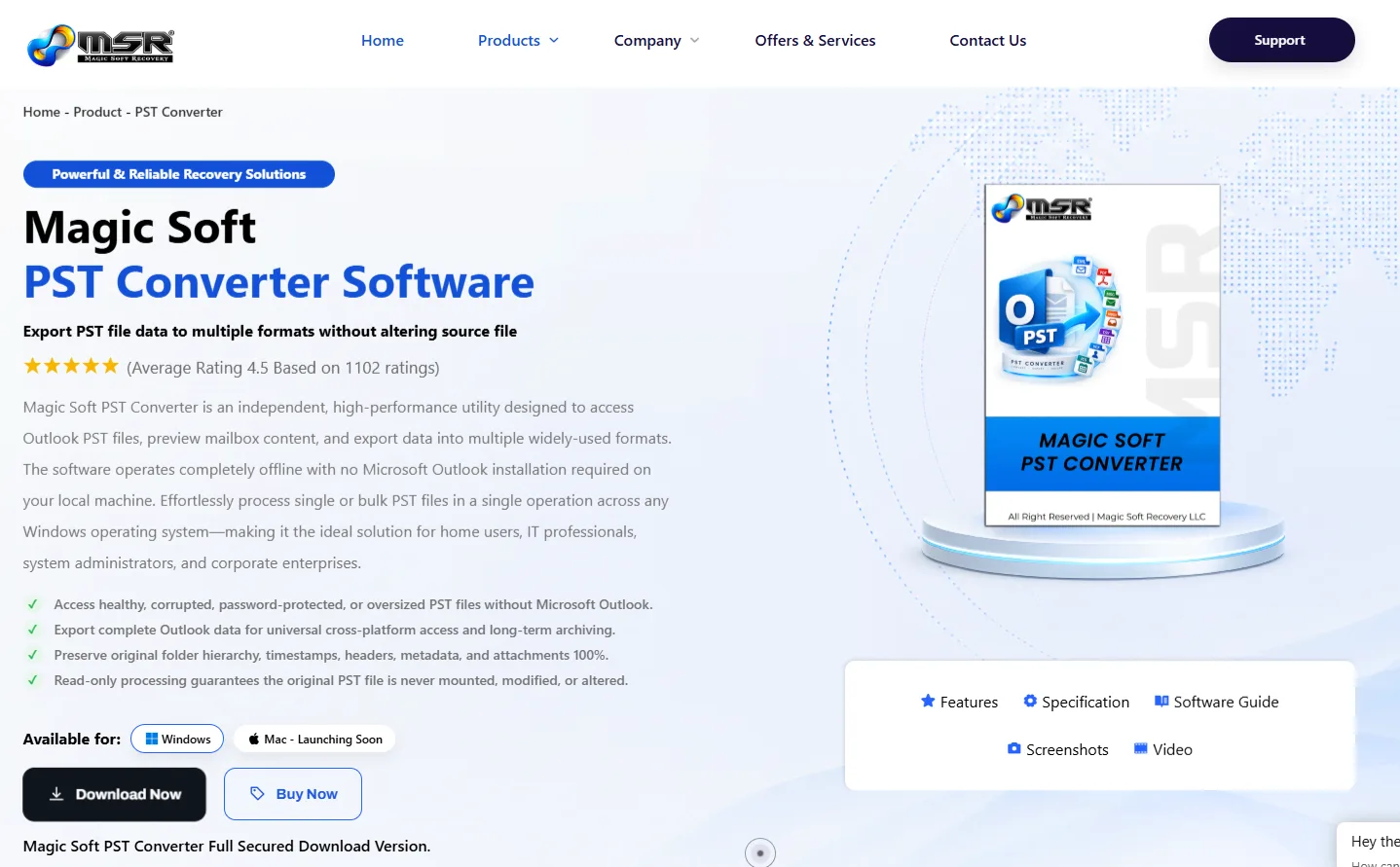
Step 1 — Download Magic Soft PST Converter
Download the free demo version from magicsoftrecovery.com. No registration, no credit card, no email address required. The demo lets you preview your entire mailbox and run a sample conversion before purchasing the full version.
Step 2 — Install and Open the Software
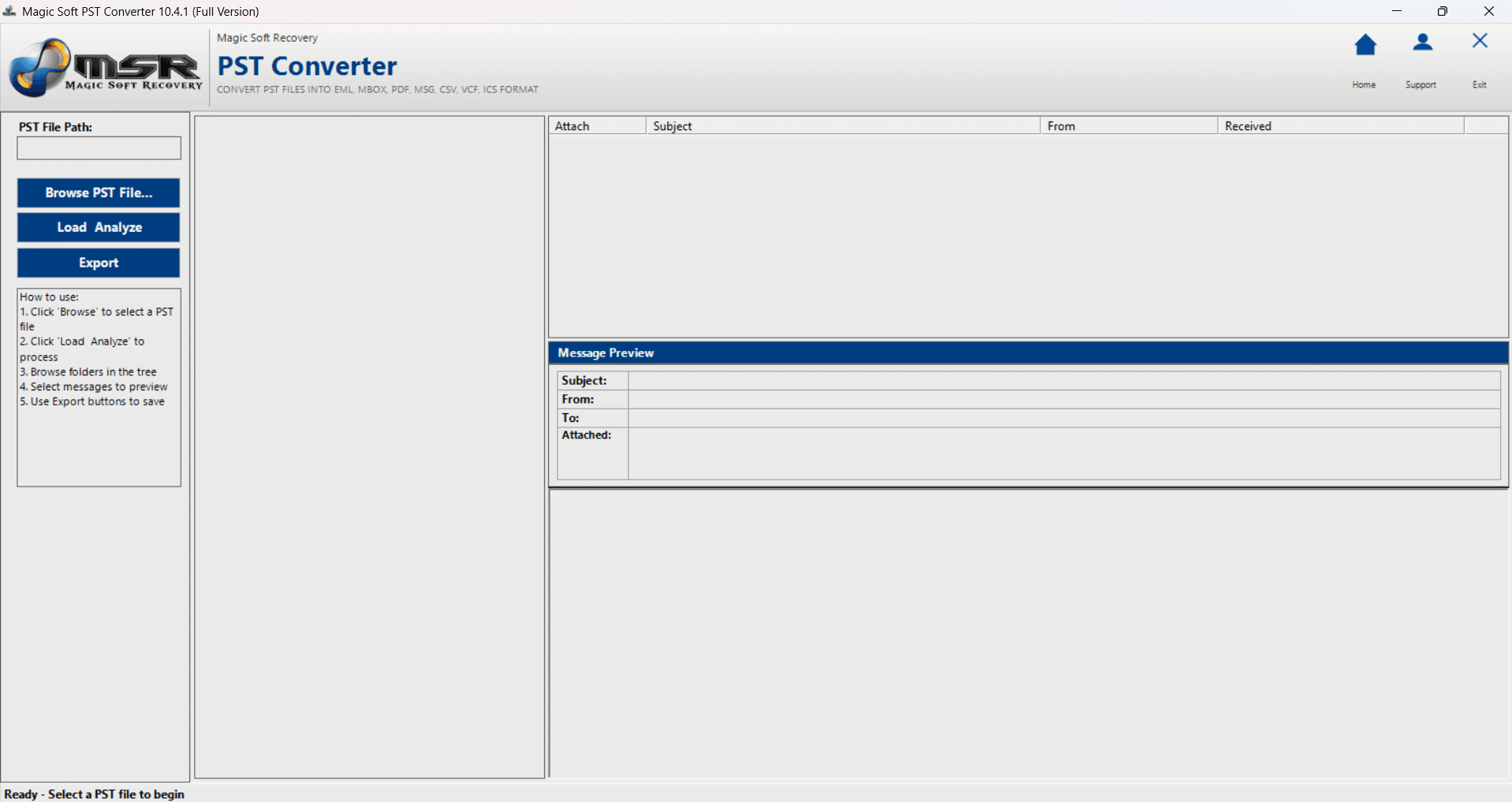
Install the software on any Windows machine — Windows 7, 8, 10, or 11, either 32-bit or 64-bit. The installation takes under two minutes. No Outlook configuration, Exchange profile, or Microsoft account is required.
Step 3 — Load Analyze Your PST File
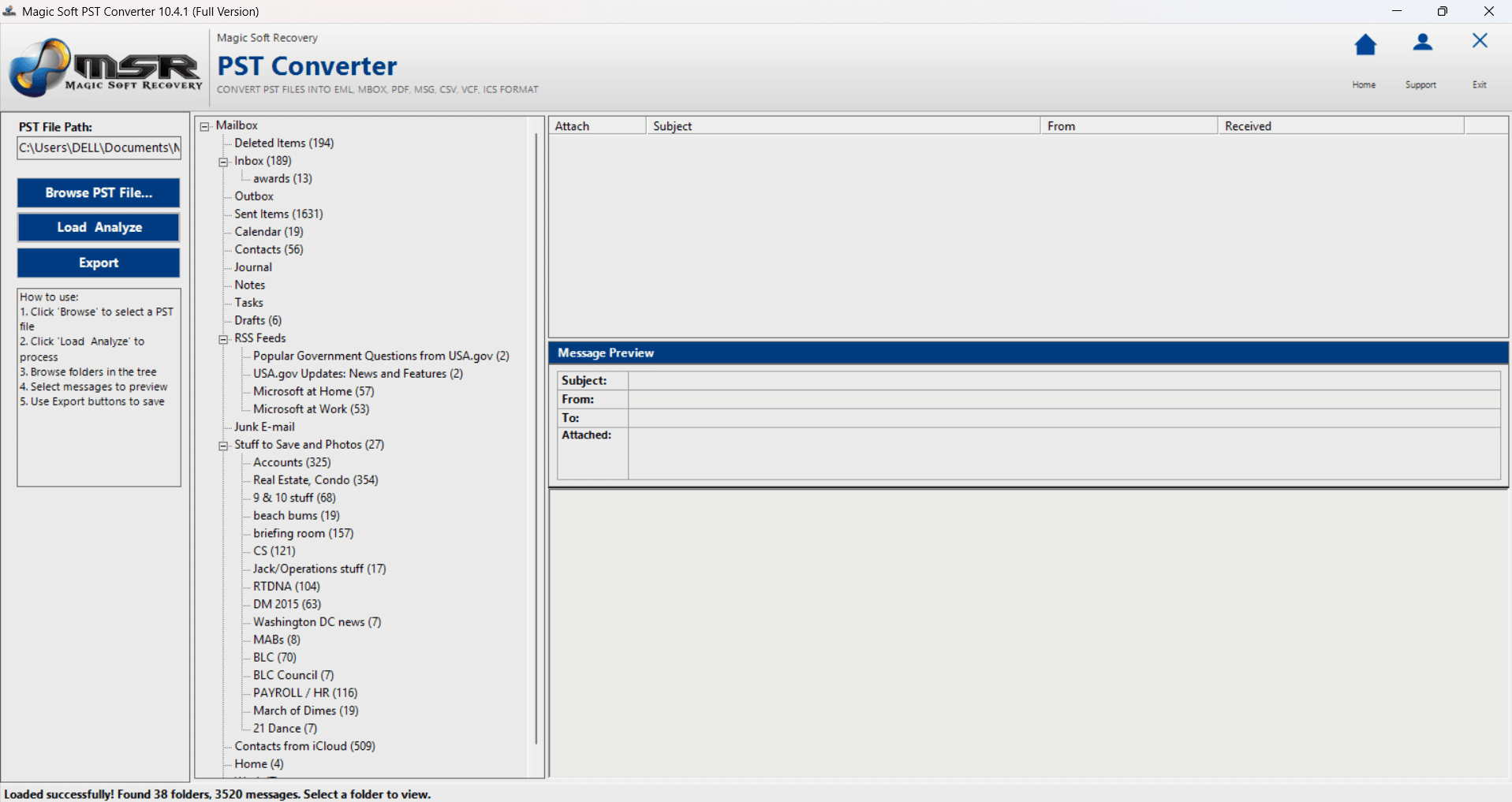
Open Magic Soft PST Converter. Click Add PST File and browse to the location of your PST file. You can load multiple PST files in a single session using Select Files or Select Folder mode, or drag and drop directly into the interface.
The software reads the PST structure immediately and displays the complete mailbox tree — Inbox, Sent Items, Drafts, Deleted Items, Contacts, Calendar, Tasks, Notes, and every custom folder exactly as it existed in Outlook.
CORRUPTED OR OVERSIZED PST FILES - If your PST file is corrupted, exceeds the 50GB Outlook limit, or was created by an older ANSI format version of Outlook, Magic Soft PST Converter handles all of these cases. It reads past common header damage that prevents Outlook from opening the file at all.
Step 4 — Preview the Mailbox Contents
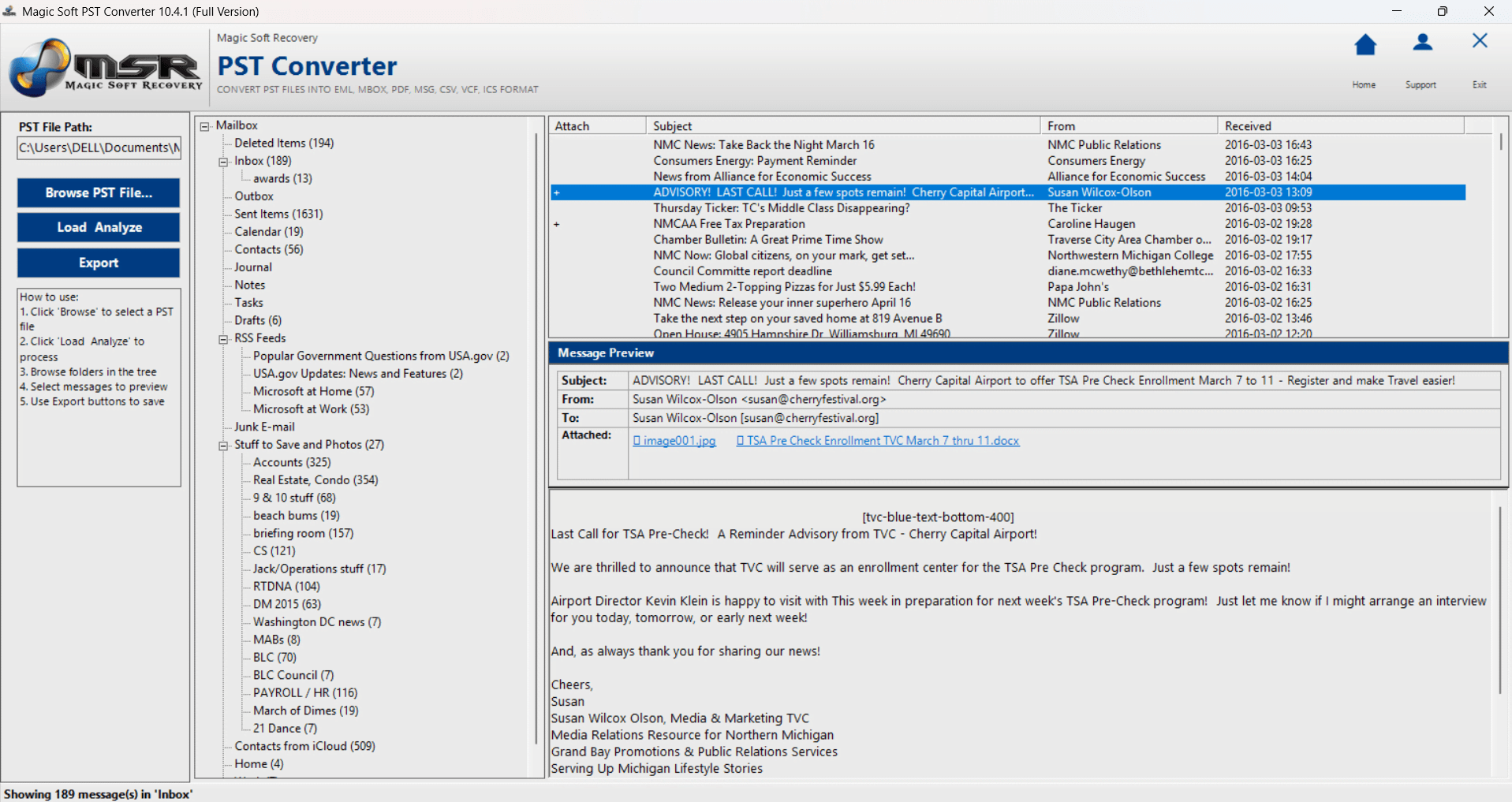
Before converting anything, browse the full mailbox tree in the left panel and open individual emails in the preview pane. Verify that:
- All expected folders are visible in the tree
- Email body content loads correctly in the preview
- Attachments appear and are correctly named
- Contacts, calendars, and tasks are visible if needed
Catching issues at the preview stage means you discover any problems before committing to a conversion run that could take hours on a large archive.
Step 5 — Select PDF as the Output Format
From the format selection panel, choose PDF as your output format. Set the destination folder for your converted files — choose a local drive rather than a network location for best performance on large conversion jobs.
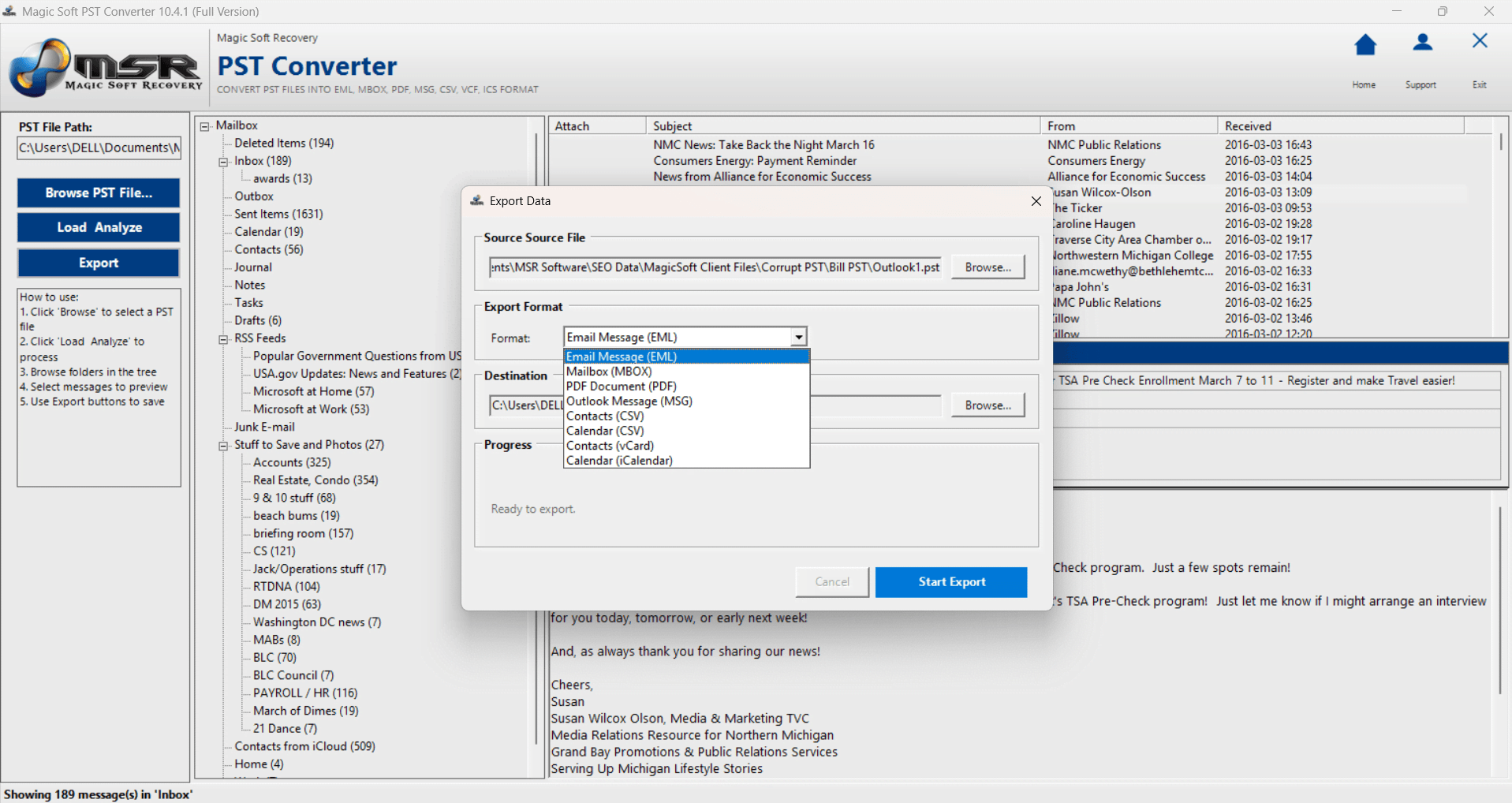
Step 6 — Run the Conversion
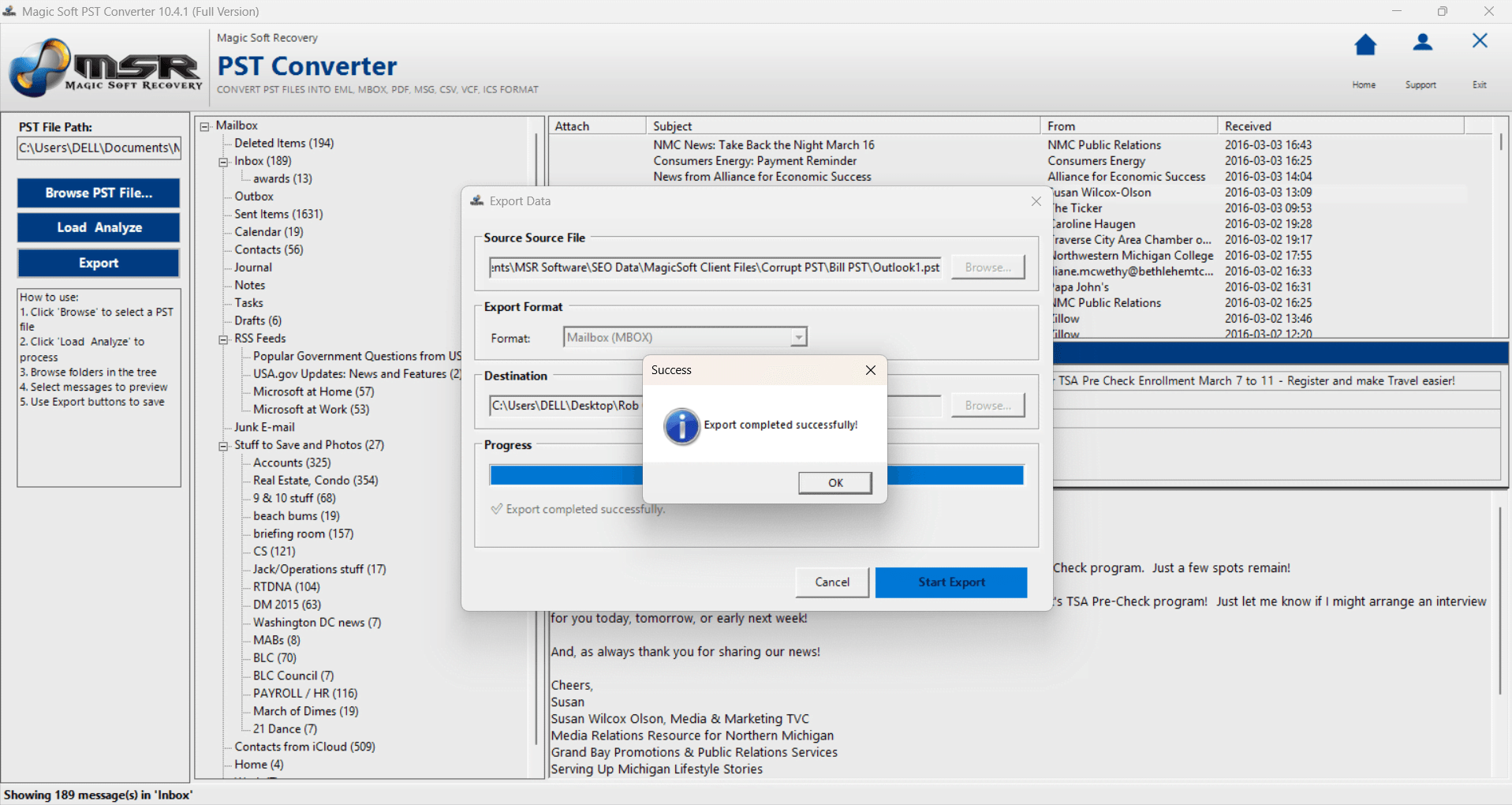
Click Convert. A progress indicator shows completion in real time. The software processes each PST folder sequentially and writes the output files to your destination folder as it goes.
When complete, the output folder contains individual PDF files for each email, organized in a folder structure that mirrors the original PST. Each PDF includes the complete email header block, the full body content, and all attachments referenced within the document.
03
What Happens to Attachments During PST to PDF Conversion?
This is the question that separates a good PST to PDF conversion from a bad one. Here is exactly what happens to each attachment type in Magic Soft PST Converter output:
| Attachment Type |
What Happens |
Where It Appears |
| Email with PDF attachment |
Preserved completely |
Attachment name and content visible in PDF output |
| Email with Word / Excel file |
Preserved completely |
File name and type recorded in the PDF document |
| Email with images (PNG, JPG) |
Preserved completely |
Inline images render in the email body; attached images in attachment list |
| Email with ZIP or archive |
Preserved completely |
Archive filename and size recorded in PDF |
| Email with no attachments |
Converted normally |
Clean PDF with full header, body, and timestamps |
One important point: Magic Soft PST Converter performs read-only operations throughout the entire process. Your original PST file is never opened in write mode, never mounted as a live Outlook store, and never modified in any way. If anything goes wrong during conversion, your source file remains exactly as it was before you started.
Who Needs to Convert PST to PDF and Why
Legal Teams and Law Firms Court submissions, regulatory filings, and contract dispute evidence all require email records in a non-editable, timestamp-visible format. PDF is the standard. The alternative — printing individual emails in Outlook — takes days on a large mailbox and produces inconsistent output. A batch conversion using Magic Soft PST Converter produces a complete, organized, court-ready output in hours.
IT Administrators Handling Offboarding and Migrations When an employee leaves or an Exchange environment is decommissioned, the PST files left behind need to be preserved in an accessible format. Converting to PDF ensures the records remain readable regardless of whether Outlook is available in the future.
Compliance and Records Management Teams GDPR, HIPAA, SOX, and similar regulatory frameworks require email records to be retained for defined periods in a format that can be produced on request. PDF is universally accepted for this purpose. Magic Soft PST Converter processes everything locally — no email data leaves your machine — which is essential for regulated industries.
Individuals Archiving Personal Email History If you have years of email stored in a PST file from an old Outlook installation, converting to PDF ensures you can access that history on any device without needing Outlook. PDF files open on Windows, Mac, iOS, and Android without any specialist software.
PST to PDF vs Other Conversion Methods
There are three approaches to getting PST data into PDF format. Here is an honest comparison:
| Method |
Outlook Needed |
Batch Support |
Attachment Handling |
| Magic Soft PST Converter |
No |
Yes — unlimited |
Full preservation in output |
| Outlook Print to PDF |
Yes — required |
No — one at a time |
Attachments not included |
| Online PST to PDF tools |
No |
Limited |
Data uploaded externally |
The Outlook print method is the most common mistake we see. It works for one or two emails but is completely impractical for any serious archiving or compliance scenario. It also does not include attachments in the output — they are referenced by name only, not preserved in the PDF.
Online converters introduce a data privacy risk that is unacceptable for any organization handling sensitive communications. Your email data — which may contain confidential business information, privileged attorney-client communications, or protected health information — is uploaded to a server you do not control.
Pro Tip — For Large PST Archives Over 20GB
If you are converting a large PST archive, use the Date Range filter to split the job into manageable chunks rather than converting the entire file at once. Start with the most recent 2 years first, verify the output, then process older date ranges in separate passes. This approach also makes the output easier to navigate.
Magic Soft PST Converter has no file size limit and has been tested on archives well above 50GB, so the tool itself will not fail — but your output folder will be easier to work with if it is organized by date range rather than a single monolithic export.
Summary
Converting PST to PDF with attachments intact requires a dedicated tool that reads PST files independently — not Outlook printing, not online converters. The key requirements are:
- Reads PST files without Microsoft Outlook installed
- Preserves all attachments in the output — not just references by name
- Maintains original folder structure and email headers
- Processes locally — no email data transmitted externally
- Handles large, oversized, and corrupted PST files
Magic Soft PST Converter meets all five requirements. The free demo version lets you load your PST file, preview every email and attachment, and verify the output before purchasing.