

Why Migrate from Google Workspace to Microsoft 365?
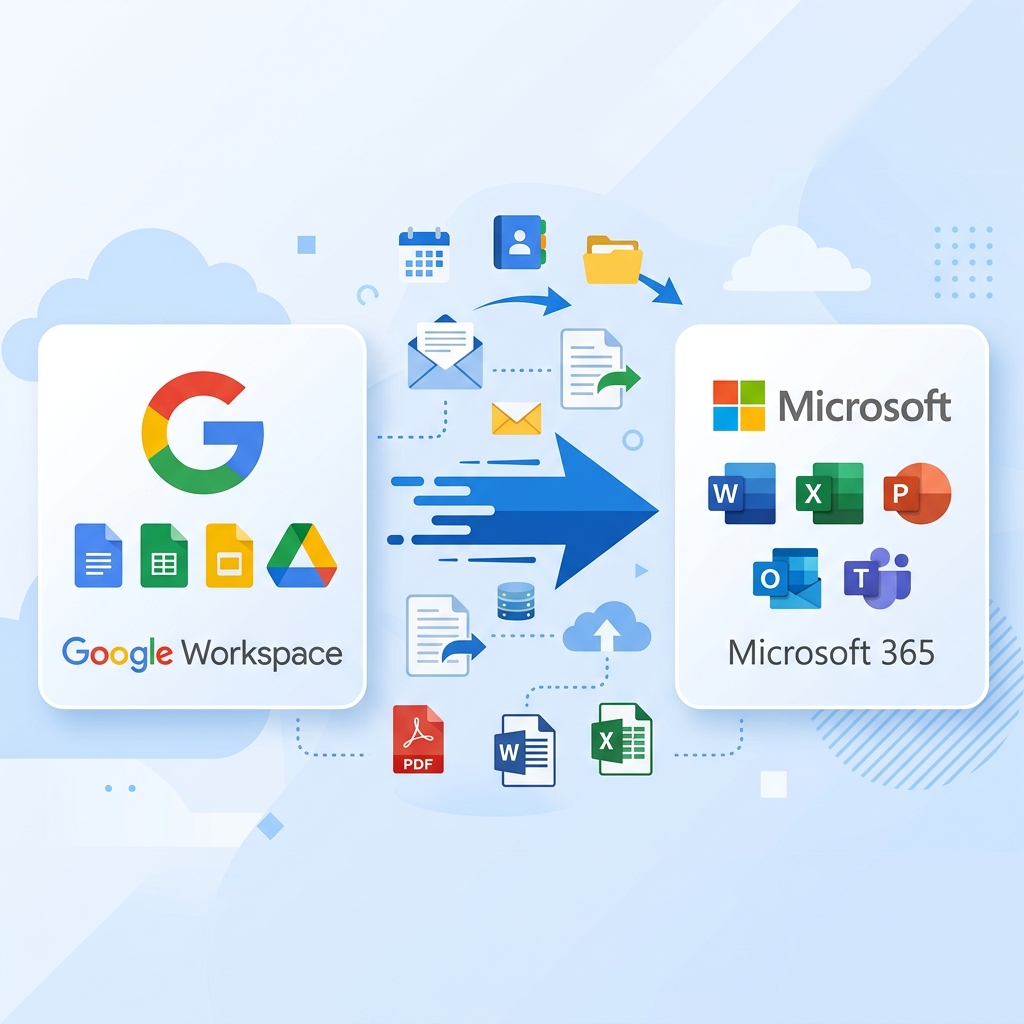
Organizations across the globe are increasingly choosing to migrate Google Workspace domain to Microsoft 365 due to the deep integration of Microsoft 365 with enterprise tools like Teams, SharePoint, OneDrive, and the full Office productivity suite. Whether it's better compliance controls, advanced security features, or native Outlook support — the reasons are compelling.
- Full Office suite integration (Word, Excel, PowerPoint) with cloud sync
- Advanced compliance and eDiscovery with Microsoft Purview
- Native Microsoft Teams collaboration with 300+ person meetings
- Conditional Access and Azure AD enterprise security policies
- On-premises hybrid deployment options for large organizations
Prerequisites Before Migration
Before beginning the migration process, it's crucial to prepare your environment properly. Skipping this phase is one of the most common causes of failed or incomplete migrations.
- Ensure you have Global Administrator access on both Google Workspace and Microsoft 365 Admin Center.
- Verify your custom domain ownership with Microsoft 365 via a TXT DNS record.
- Create all target user accounts in Microsoft 365 before starting mail migration.
- Review your MX, SPF, DKIM, and DMARC DNS records — these must be updated during cutover.
- Notify users about expected downtime and the switchover timeline.
- Back up all Google Workspace data (Drive, Gmail, Contacts, Calendar) before proceeding.
Important: Do not remove your domain from Google Workspace before completing the full migration and verifying mail flow in Microsoft 365. Premature removal can cause email delivery failures.
Migration Methods Overview
There are two main approaches to migrate from Google Workspace to Microsoft 365:
| Method | Best For | Complexity | Data Included |
|---|---|---|---|
| Microsoft 365 Admin Center (Native) | Small to medium organizations (<500 users) | Medium | Email, Contacts, Calendar |
| Third-party Migration Tool | Large enterprises, bulk migration | Low (automated) | Email, Drive, Contacts, Calendar, Tasks |
| IMAP Migration | Email-only migration scenarios | Low | Email only |
Step-by-Step Migration Guide
Follow these steps to execute a smooth migration from Google Workspace to Microsoft 365:
- 1
Set Up Microsoft 365 Admin Center
Sign in to the Microsoft 365 Admin Center at admin.microsoft.com. Navigate to Setup → Domains and add your custom domain. Follow the on-screen wizard to verify ownership using a TXT DNS record.
- 2
Create User Accounts in Microsoft 365
Go to Users → Active Users and create mailboxes for all your users, or upload them in bulk via a CSV file. Assign appropriate Microsoft 365 licenses to each user account.
- 3
Configure Google Workspace for Migration
In Google Workspace Admin Console, enable IMAP access for all users. Create a service account with domain-wide delegation and grant it the necessary scopes for Gmail, Contacts, and Calendar APIs.
- 4
Start the Migration Batch
In Microsoft 365 Admin Center, go to Exchange Admin Center → Migration. Create a new migration batch, select Google Workspace (Gmail) migration, and upload your migration endpoint credentials and user list CSV.
- 5
Monitor Migration Progress
Track the migration status in the Migration dashboard. Allow the initial sync to complete. Resolve any errors flagged in the migration report before proceeding to DNS cutover.
Pro Tip: For large organizations with 500+ users, consider using a dedicated migration software such as the Magic Soft Google Workspace Migration Tool which supports bulk migration via secure Graph API authentication and preserves folder structure.
Updating DNS Records
Once mailbox data has been successfully migrated and verified, it's time to perform the DNS cutover — the critical step that redirects email flow from Google to Microsoft 365.
MX Record Update
Remove your existing Google MX record and add the Microsoft 365 MX record:
Type:     MX
Host:     @ (or yourdomain.com)
Points to: yourdomain-com.mail.protection.outlook.com
Priority:  0
TTL:       3600
SPF Record Update
Update your SPF record to authorize Microsoft 365 to send emails on your behalf:
Type:    TXT
Host:    @
Value:   v=spf1 include:spf.protection.outlook.com -all
Post-Migration Checklist
After the DNS cutover, validate everything is working correctly:
- ✅ Send a test email from an external account to verify mail delivery
- ✅ Confirm users can log in to Outlook (web and desktop)
- ✅ Verify all historical emails, contacts, and calendar events appear
- ✅ Test Teams, SharePoint, and OneDrive connectivity
- ✅ Check MX, SPF, DKIM and DMARC DNS records are propagated
- ✅ Revoke Google Workspace service account API access
- ✅ Update email signatures, auto-replies, and distribution lists
- ✅ Notify all users of the completed migration and new login procedures